
Reserving Conference Rooms
To add a conference room reservation to a meeting, or to just reserve a room in the Manhattan office:
In your Outlook calendar, click on New Meeting, and then, um, click on New Meeting.

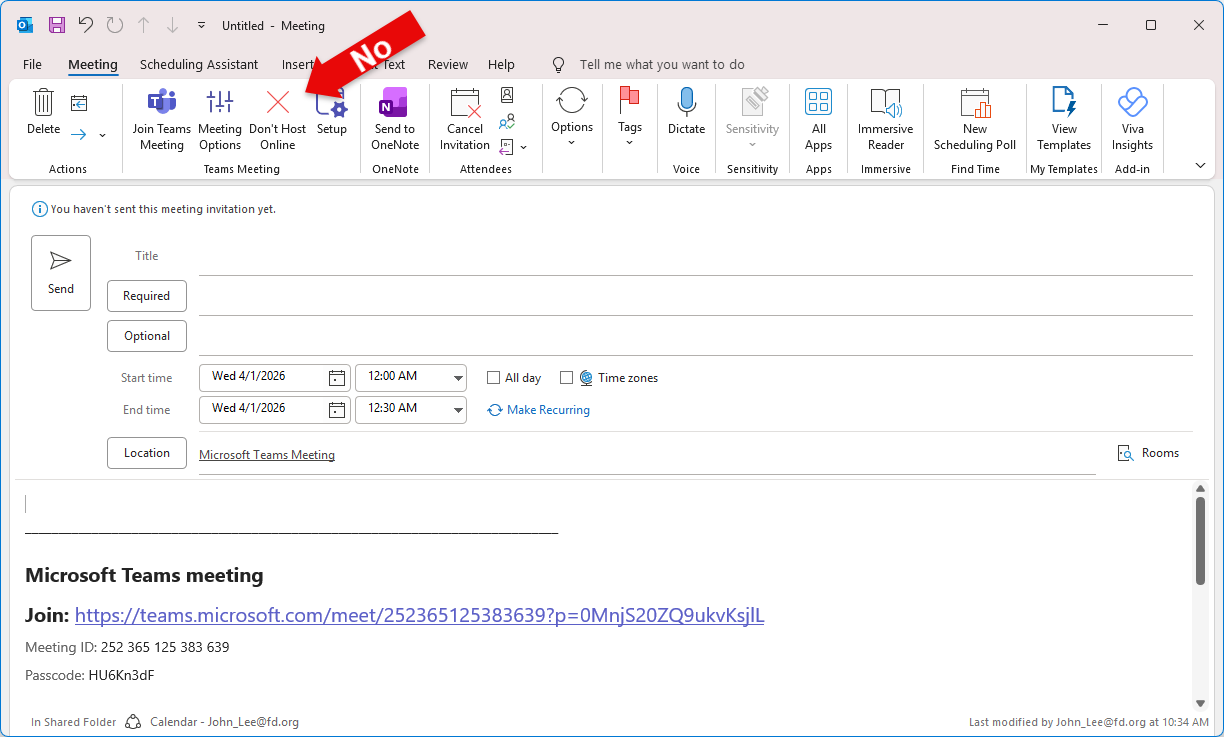
Outlook helpfully or annoyingly will default to setting up a Teams meeting. Click “Don’t Host Online” to cancel the Teams stuff.
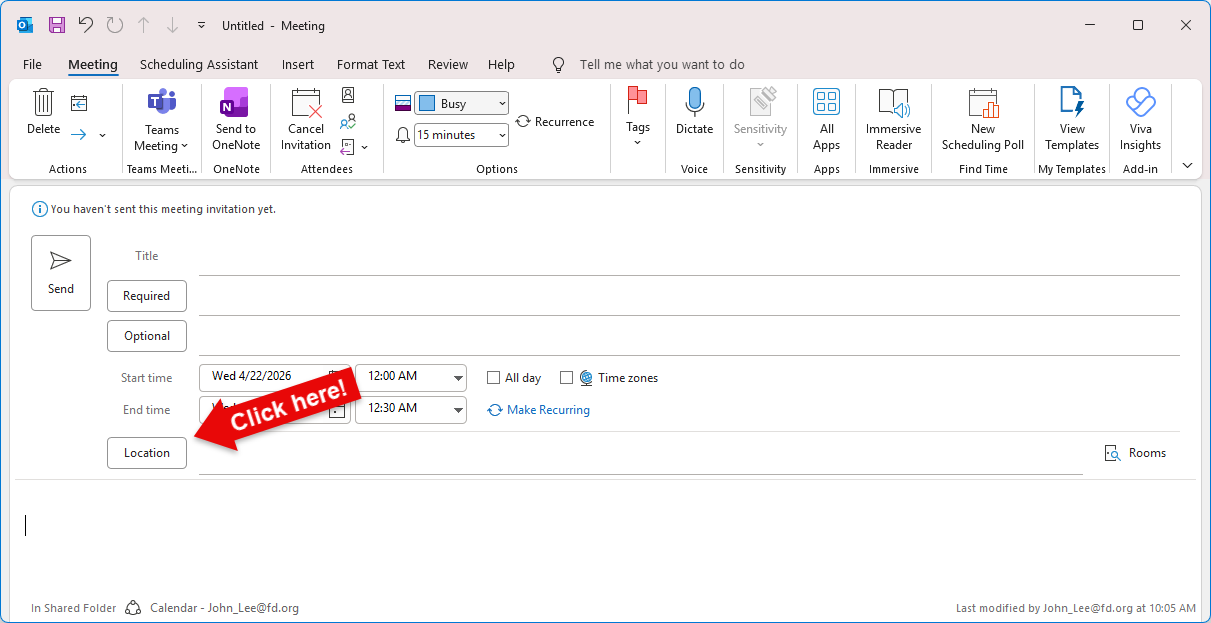
Click on the Location button to pull up the conference rooms list. (Ignore the thing on the right that says Rooms.)
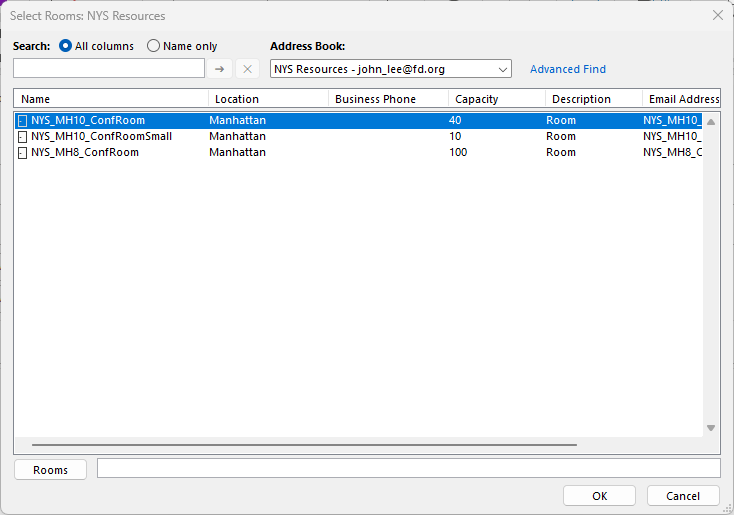
You’ll see our list of conference rooms pop up.
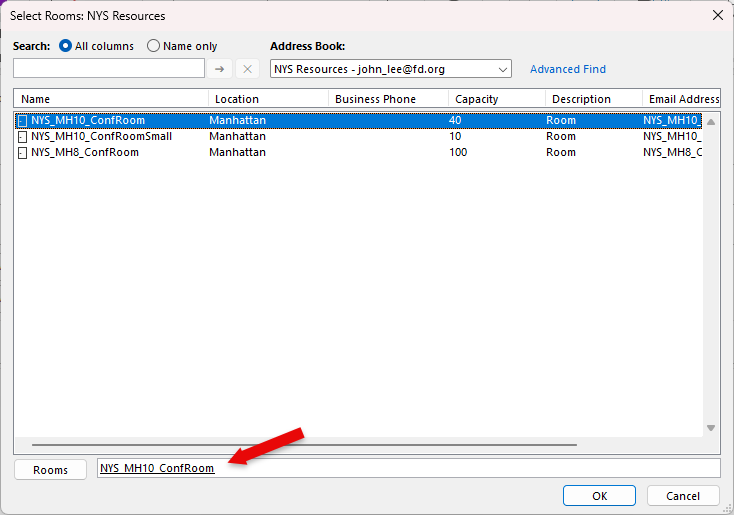
Double click on the room you want to reserve and it’ll send the name to the bottom area. Then click OK.
Once you’re back to the meeting scheduling thing, just put the date and time and that’s it!
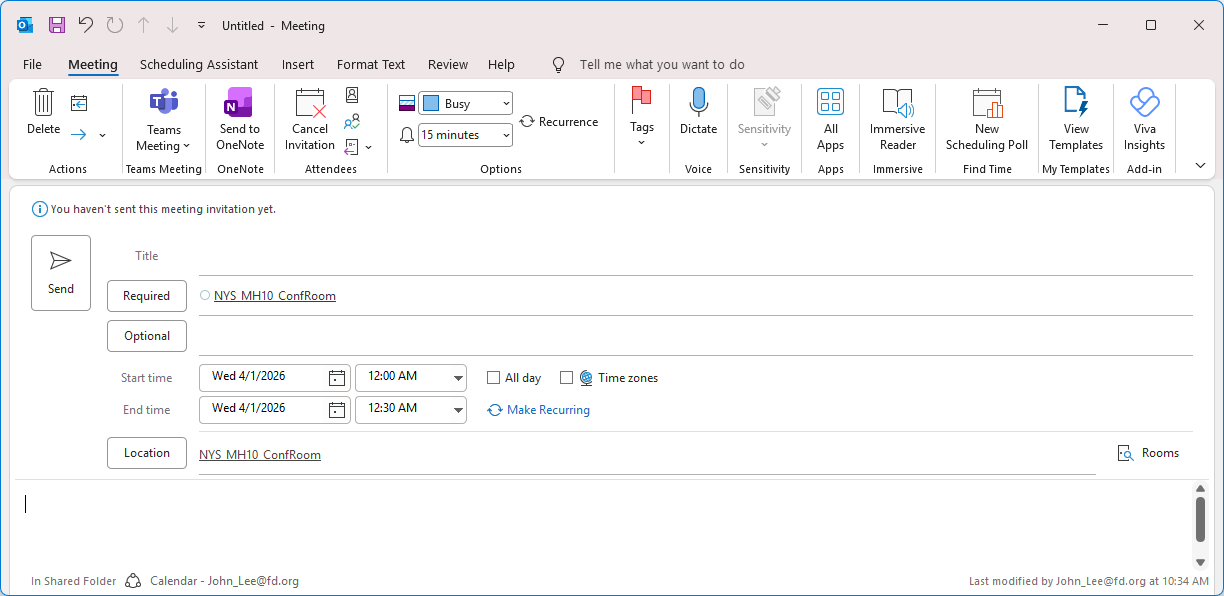
That is, if all you want to do is reserve the room for like an hour in the afternoon and don’t need to fuss with sending invitations to whoever’s coming and all that, you can just select the room and “Send” the reservation and call it a day.
Of course, you can also title your meeting and invite others so they can accept and add it to their calendar.
The reservation will appear on your personal calendar. From there, you can open it and cancel the meeting if you decide.
Now that we have a central reservation option, it would be nice if you decide not to use a room to cancel it on the calendar. You will receive a reminder for it like other calendar events; if you get an alert for a room reservation and remember you actually meant to cancel, you can double click on the event in the reminder window to open the reservation and cancel it.

Yeah, two clicks. I also forgot to mention when you do schedule a room without more information, it’s like, are you sure you wanna send without a subject? There is literally no field labeled subject.
To add the conference room calendars to Outlook:
In the Outlook Calendar, click on one of your Calendar group headings. “My Calendars,” for example, click the title. Then select Add Calendar and then From Room List…

You’ll see the same rooms list as above when we were reserving a room. If you want to add them all, you can shift or control + click to select them all, and then click on the Rooms button to add them to the field at the bottom.
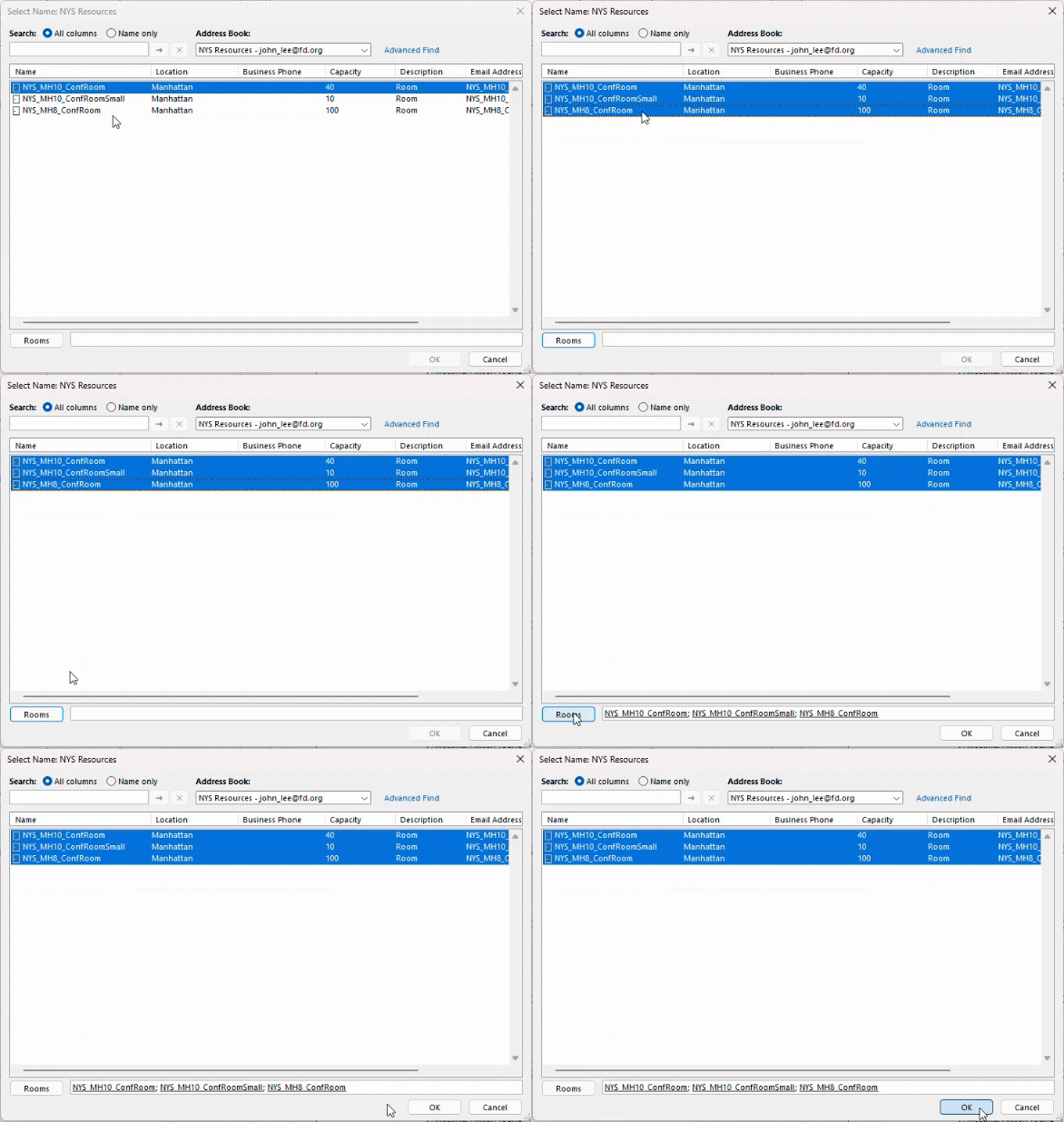
The conference rooms will be added to your list of Shared Calendars you can click on and off.
From here things mostly* work and look like any other shared calendar. If you’re used to navigating multiple calendars you should be good to go. If not, call one of the tech people over for help cause that would need way too many screenshots.
*I say mostly because one thing you can’t do is just click on a date on the calendar in front of your eyes and reserve time on it that way, which is why this whole guide exists.